Expose a VM with an Elastic IP
An Elastic IP (EIP) is a public IPv4 address that the platform maps to a private address in one of your subnets. This guide gives the VM from Create a virtual machine a public IP and checks it with SSH.
Prerequisites
- A running VM with a known Assigned IP. The guide uses
docs-demo-vmat10.20.0.2. - A subnet with a NAT gateway. EIPs attach to the gateway, so a subnet without one does not appear in the EIP wizard.
Enable the NAT gateway on a subnet
You choose this when you create the subnet, with the Enable NAT gateway checkbox, or later from the subnet details page with Options → Edit. Create a subnet with a NAT gateway walks through the wizard and explains the options. The guide's VM runs on docs-demo-subnet, created that way.
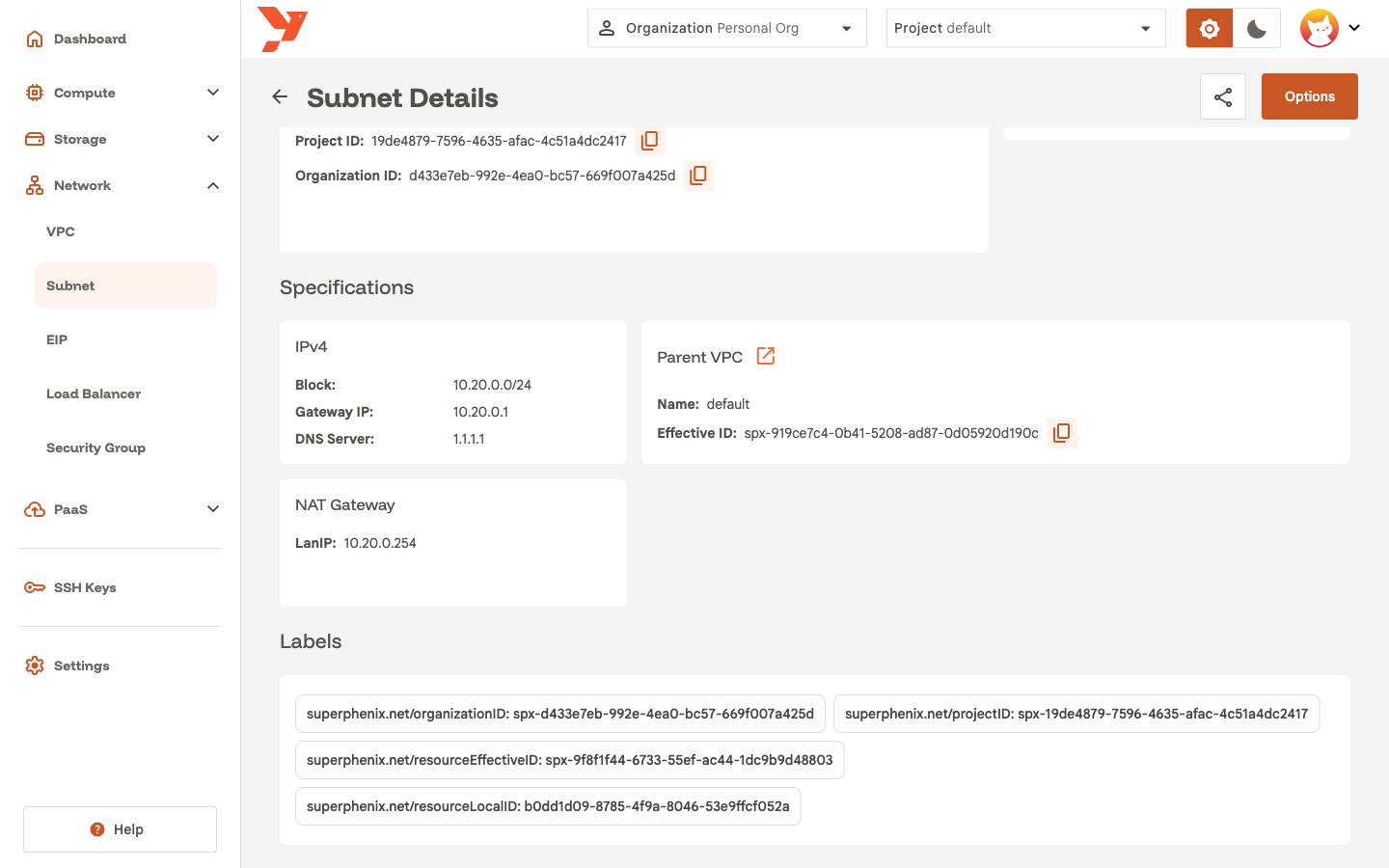
To check an existing subnet, open its details page. A subnet with a gateway shows a NAT Gateway card with the gateway's LanIP.
Create the EIP
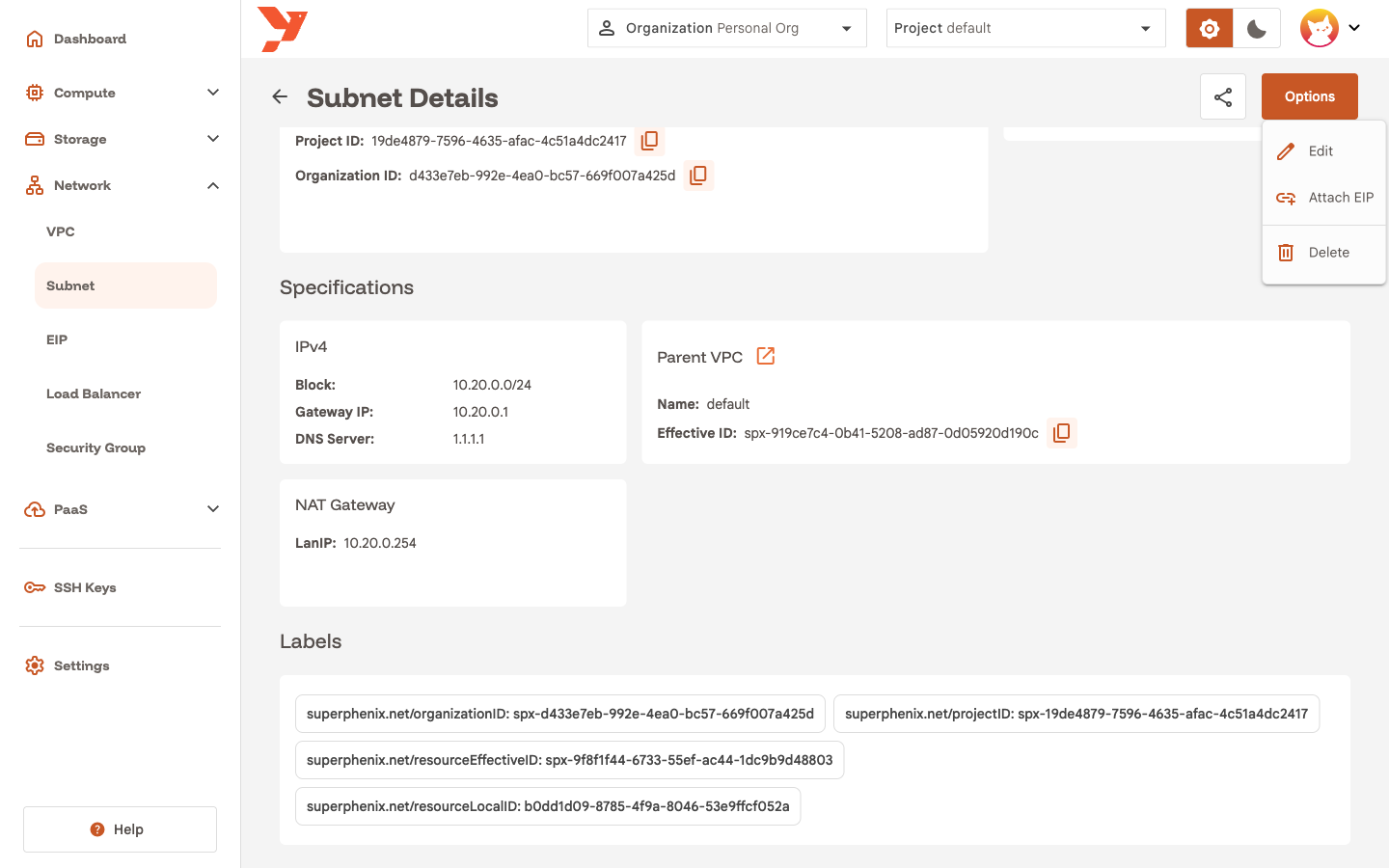
- On the subnet details page, open Options and click Attach EIP. The EIP wizard opens with the AZ and subnet already selected. You can also start from Network → EIP → Create an EIP and pick the subnet yourself.
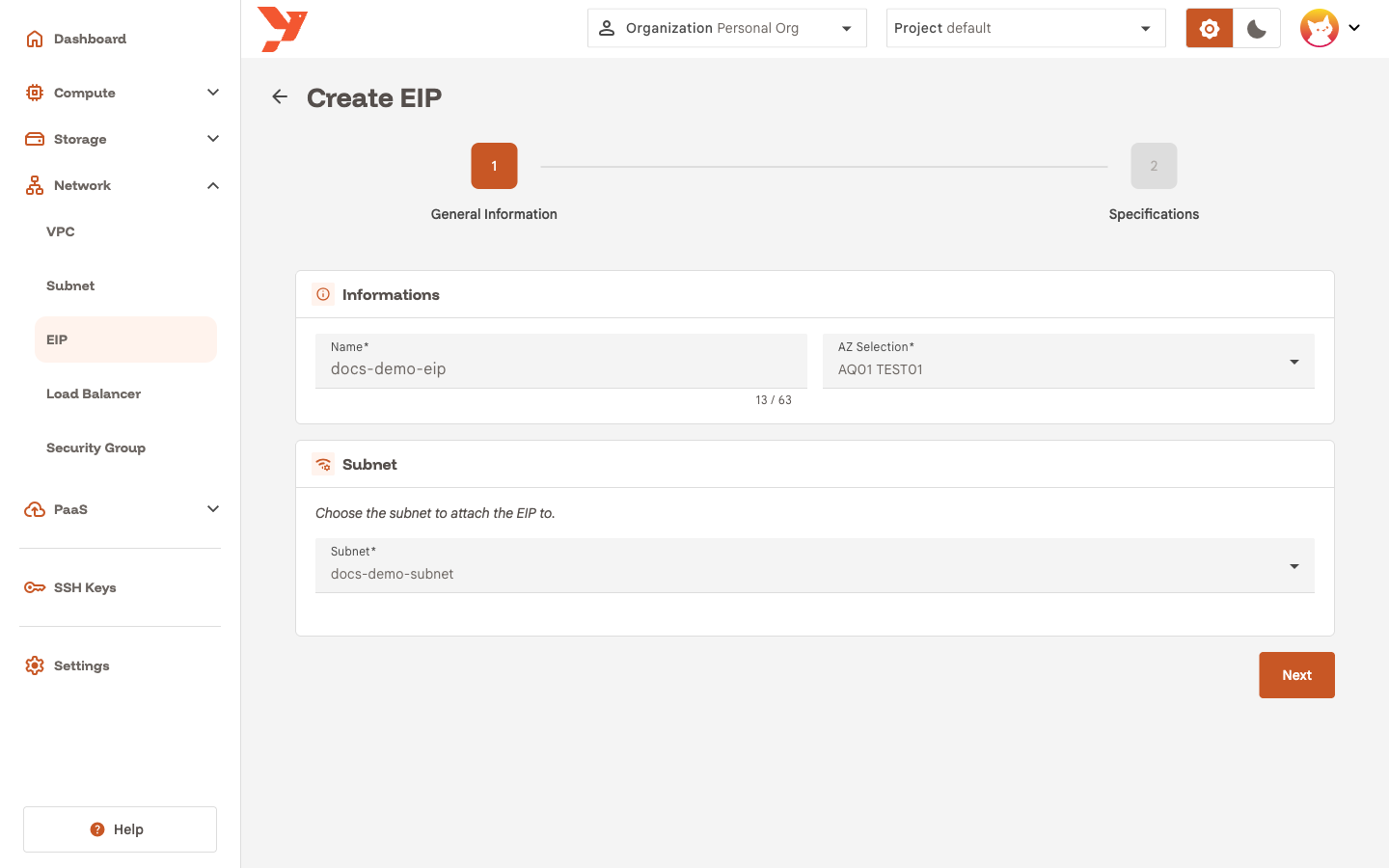
- Enter a Name, for example
docs-demo-eip, and click Next.
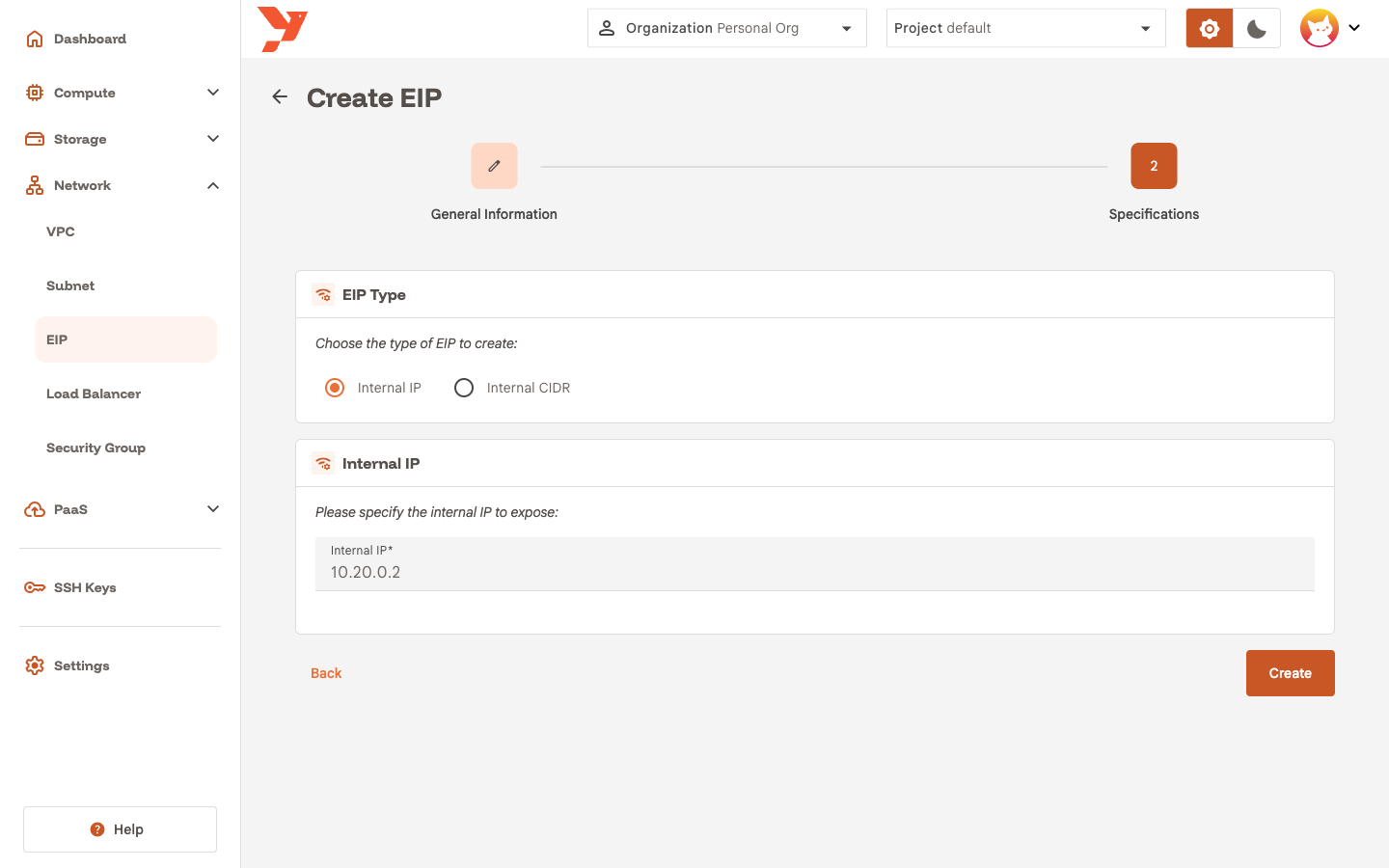
- Keep EIP Type on Internal IP and enter the VM's Assigned IP in Internal IP.
- Click Create.
Internal IP mode is a one-to-one NAT. Every port of the public address reaches the same port on the VM, and the VM's outbound traffic leaves with that public address.
Read the public address
The console opens the EIP details page. The FIP card shows Ready, the Internal IP you entered, and the External IP the platform allocated. Reload the page if Ready still reads no. Allocation takes a few seconds.
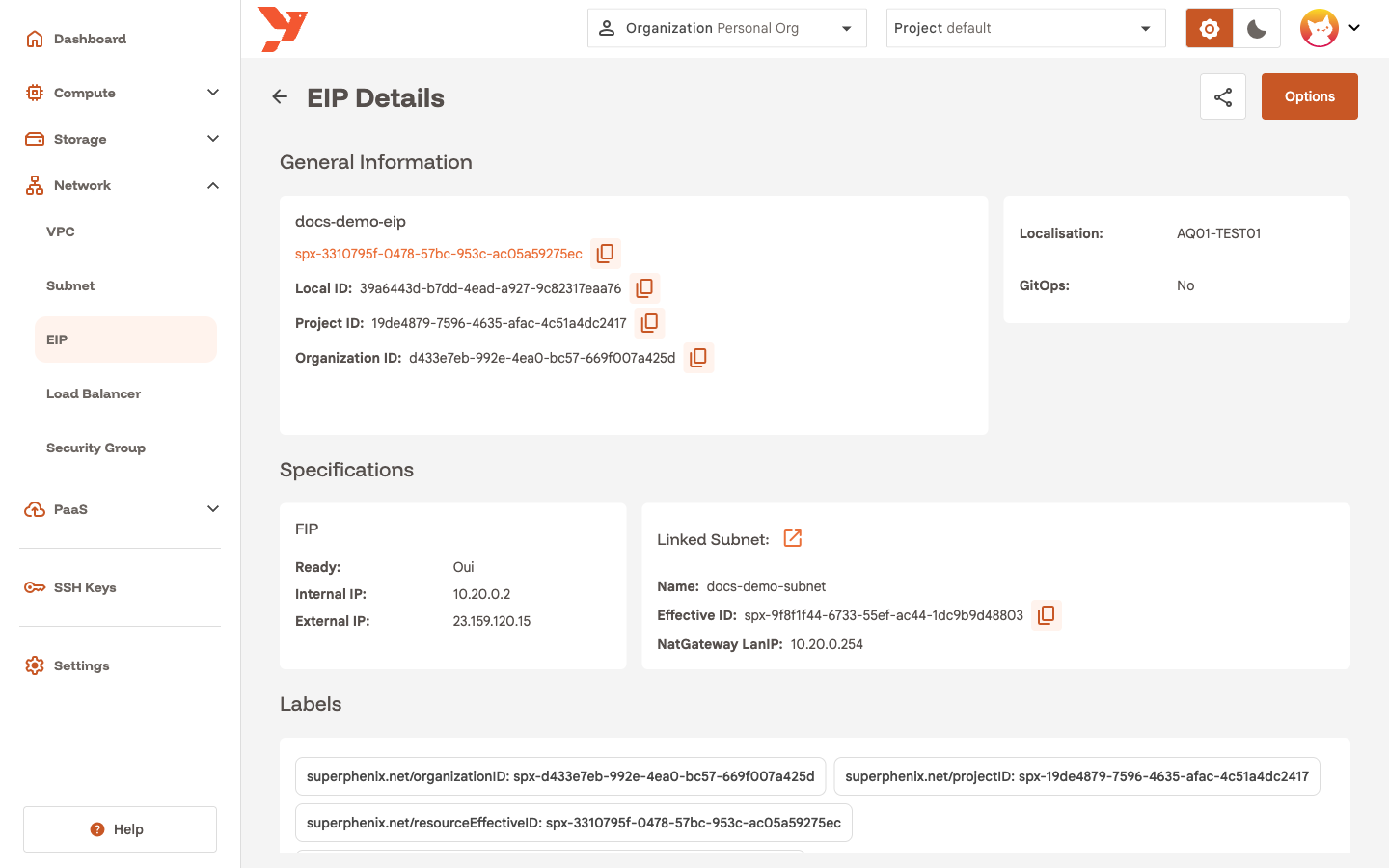
The Network → EIP list shows the same address in its Public IP column.
Test the connection
From your workstation, check that the SSH port answers:
Then log in as the default user:
Use the key you selected in the wizard, or the generated password from the instance's Storage tab. Ubuntu asks you to change the password on the first login.
Alternative: Internal CIDR with DNAT
Pick Internal CIDR in step 3 when you want one public address for a whole range, or when you want to publish only specific ports.
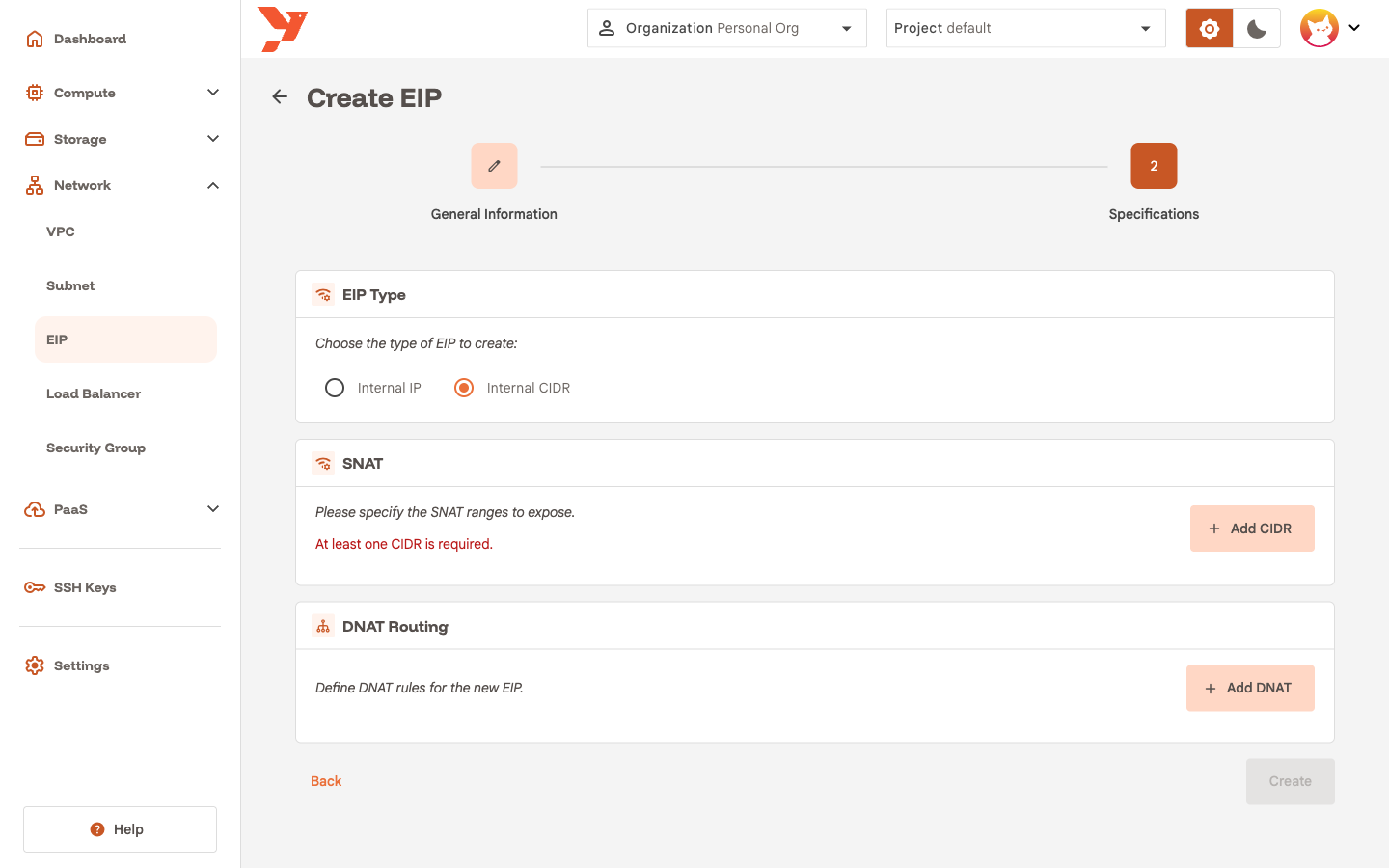
- SNAT: click Add CIDR and enter the private ranges that leave through this public address. The form needs at least one CIDR. This gives the VMs outbound Internet access and nothing more.
- DNAT Routing: click Add DNAT for each port you publish. A rule maps an External port on the public address to an Internal IP and Internal Port, for the chosen Protocol.
Without DNAT rules, an Internal CIDR EIP opens no inbound port.
Notes
- One NAT gateway serves one subnet. Two VMs on the same subnet can each have their own EIP.
- Security groups apply on top of the EIP. When no security group targets the VM, all traffic passes. See Create a security group to filter it, and Network for the concepts.
- Deleting the EIP releases the public address. The VM keeps its private IP and stays up.